How I Solved Windows Installation Disk Errors A Complete Walkthrough
I recently faced a windows installation disk error while trying to install windows on a system brought to my office and I decided to share the walkthrough of how I was able to fix it so this can help you when you run into this error.
Windows Installation Disk Errors A Complete Walkthrough
Installing Windows should be straightforward, but in reality, disk partition and BIOS settings often create confusing roadblocks for many users. Recently, I encountered two common installation errors that prevented Windows from installing on my computer. Instead of giving up, I investigated, tested solutions, and successfully resolved both issues. In this post, I will walk you through exactly what happened, what the errors meant, and how I fixed them step by step.
This guide is especially useful if you are installing Windows on a modern laptop or desktop that uses UEFI firmware.
READ ALSO: HOW TO CREATE A PROFESSIONAL BUSINESS EMAIL
Windows Installation Disk Error: Why These Errors Happen
Newer computers use UEFI firmware instead of the older Legacy BIOS.
Similarly, modern hard drives typically use the GPT partition style, while older systems used MBR.
Problems arise when:
- Your computer boots in UEFI but your disk is MBR, or
- Your computer boots in Legacy mode but your disk is GPT, or
- Your Windows USB installer is created in the wrong format.
Many people don’t even know in which partition their computer or installation media boost and this is the beginning of the problem. When any of these mismatches occur, Windows refuses to install and throws confusing error messages.
That was exactly what I experienced.
First Error I Encountered
Error message:
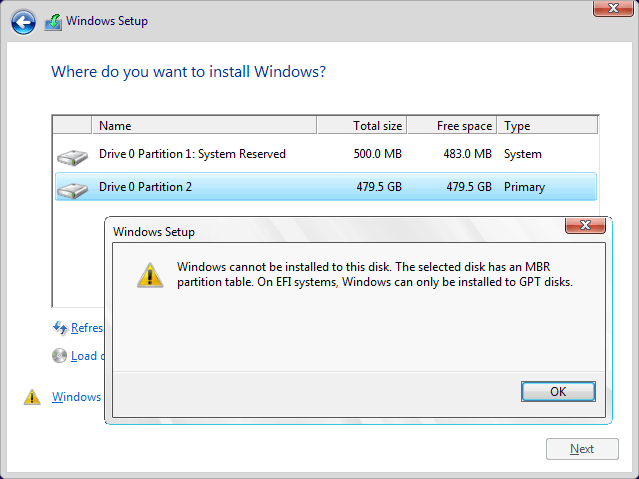
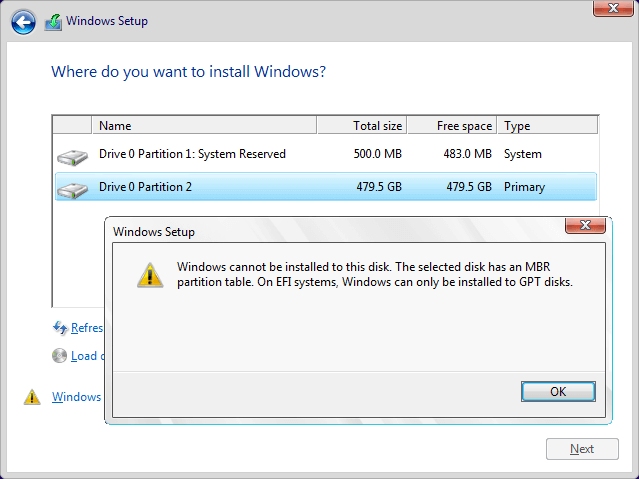
“Windows cannot be installed to this disk. The selected disk has an MBR partition table. On EFI systems, Windows can only be installed on GPT disks.”
What this meant
My laptop was running in UEFI mode, but my hard drive was formatted as MBR. Windows requires GPT when installing in UEFI mode, so installation was blocked.
How I fixed it
From the Windows installation screen, I pressed:
Shift + F10This opened the Command Prompt. Then I typed:
diskpart
list disk
select disk 0
clean
convert gpt
exit
exit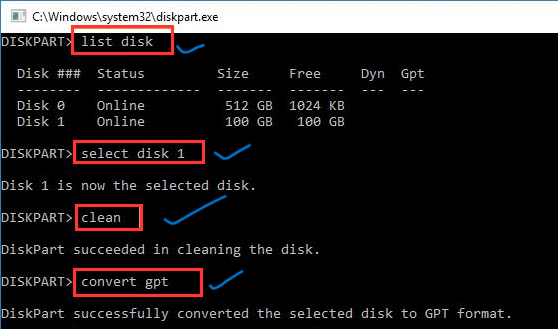
After this, I clicked Refresh, selected the disk, and clicked Next.
This successfully converted my disk from MBR to GPT, allowing Windows to continue.
Second Error I Encountered
After fixing the first issue, I ran into another message:
“Windows cannot be installed to this disk. The selected disk is of the GPT partition style.”
This time, the problem was the opposite. My disk was now GPT, but my system was still booting in Legacy mode through the USB installer.
BIOS Setting Adjustment
I restarted my computer, entered BIOS, and saw two options:
- UEFI hybrid with CSM
- UEFI native without CSM
I selected UEFI native without CSM and saved changes.
However, the error still appeared.
Real Cause of the Second Error
Even though my BIOS was set correctly, my Windows USB installer was still booting in Legacy mode. That was the hidden issue.
Final Fix
When selecting my boot device, instead of choosing just my USB name, I selected:
UEFI: [USB drive name]
Once I booted in true UEFI mode, the error disappeared and Windows installed successfully.
Third Message A Warning, Not an Error
During installation, I also saw this message:
“The partitions on the disk selected for installation are not in the recommended order. Do you want to proceed?”
This is only a warning. Since my disk was already wiped, I clicked Yes and continued. Windows automatically arranged the partitions properly in the background.
Summary of What I Fixed
By the end of the process, I successfully resolved two major issues:
- MBR vs UEFI conflict
Fixed by converting MBR to GPT using diskpart. - GPT vs Legacy boot conflict
Fixed by switching BIOS to UEFI native and booting the USB in UEFI mode.
Lessons Learned
If you ever face Windows installation errors:
- Check whether your system is booting in UEFI or Legacy
- Check whether your disk is MBR or GPT
- Make sure your Windows USB is created for UEFI (GPT)
- Always boot your USB using the UEFI option in the boot menu
Matching these three things will prevent most windows installation disk errors problems